

Introduction: WordPress Just Changed Your Development Workflow 🚀
Good news! The WordPress Foundation has just launched a revolutionary tool that can completely change your development workflow.
In August 2026, the Official WordPress Browser Extension is now available on the Chrome Web Store and Mac App Store. It may look like a small extension, but it is genuinely a game-changer.
So, what exactly does this extension offer? Let’s dive deep! 🔍
What is the WordPress Browser Extension?
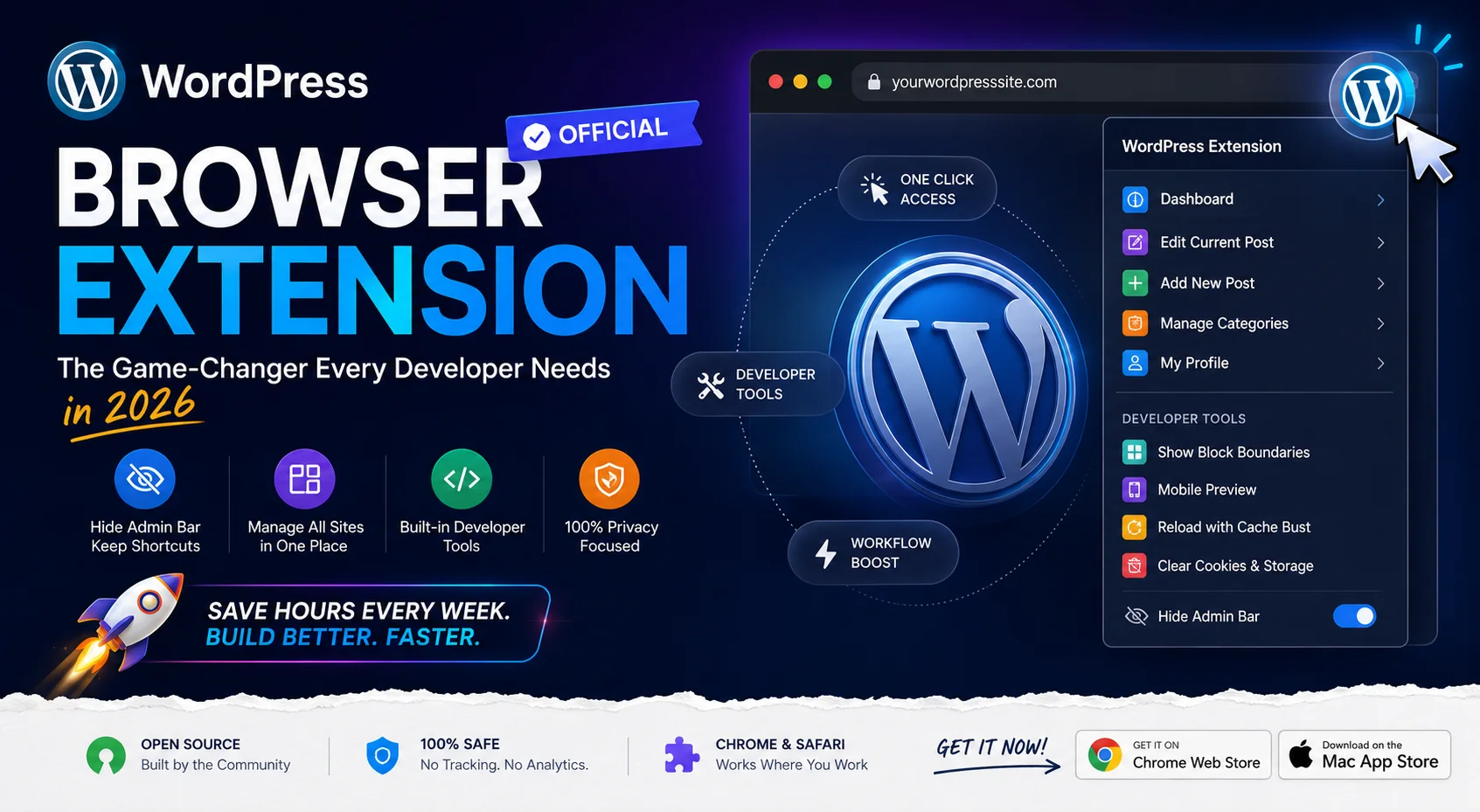
The WordPress Browser Extension is an official tool created by the WordPress Foundation. This extension:
✅ Hides the admin bar while keeping shortcuts accessible
✅ Manages all your WordPress sites from one place
✅ Provides developer tools that make working on WordPress sites easier
✅ Is completely open-source with publicly available code
✅ Is 100% privacy-focused with no tracking or analytics
The Problem It Solves (You Probably Face These Too)
If you’re a WordPress developer, you probably know these problems very well.
Problem 1: Admin Bar Headache 🤕
When you’re logged into a WordPress site, an admin bar appears at the top:
┌─────────────────────────────────────────────────────────────┐
│ ⊞ WordPress | Dashboard | My Sites | About WordPress | You │
└─────────────────────────────────────────────────────────────┘
[ACTUAL PAGE CONTENT BELOW]
What’s the problem?
- It takes up valuable viewport space
- You can’t see the actual layout that visitors see
- It can interfere with sticky headers
- It can affect scroll-driven effects
- Plugins can add their own content to the bar, making it messy
Looking for a solution?
- You can hide the admin bar from your profile settings
- But then you also lose your shortcuts
- You have to manually navigate to the Dashboard again
Problem 2: Managing Multiple Sites 😩
If you manage 5–10 WordPress sites:
- You need a separate tab or bookmark for every site
- You have to log into each site
- You need to find the Dashboard
- Your browser ends up filled with hundreds of bookmarks
Problem 3: Developer Testing Headache 🧪
When you’re testing a WordPress site:
- You need to open the inspector to check block boundaries
- You need Responsive Design Mode for mobile previews
- You need a hard refresh (
Ctrl+Shift+R) for cache busting - You need to open DevTools to clear local storage
You have to do all of this every time! ⏰
WordPress Browser Extension: The Complete Solution ✅
Now, everything is available in just a few clicks! Here’s what the extension offers:
Feature 1: Smart Admin Bar Management
The extension allows you to:
- Hide the Admin Bar wherever and whenever you want
- Hide it on specific sites
- Hide it across all sites
- Toggle it instantly
- Keep Shortcuts One Click Away
- Need to go to the Dashboard? One click
- Need to open the Editor? One click
- Need your Profile settings? One click
Browser Toolbar → WordPress Icon → Click
                  ↓
         ┌─────────────────────────┐
         │ Dashboard               │
         │ Edit Post               │
         │ Edit Page               │
         │ Add New Post            │
         │ Manage Categories       │
         │ My Profile              │
         └─────────────────────────┘
The real benefit:
- The page now displays the real layout visitors see
- Sticky headers work properly
- Scroll effects render correctly
- You can bring the admin bar back in just two clicks
Feature 2: Multi-Site Launcher 🚀
Keep all your sites in one place:
WordPress Extension → Launcher
↓
Remembered Sites:
┌────────────────────┐
│ site1.com          │
│ client.com         │
│ myblog.in          │
│ portfolio.tech     │
│ ecommerce-site.io  │
└────────────────────┘

Click → Site opens
      → If you're already logged in, you go directly to it
Benefits:
- You can forget about maintaining dozens of bookmarks
- Sites are saved locally
- Wherever you are, all your sites are accessible with one click
- It is not currently available on mobile, but it is powerful on desktop
Feature 3: Built-in Developer Tools 🛠️
The browser extension includes developer tools directly inside the extension.
Tool 1: Block Boundaries Visualizer
Modern theme with blocks - difficult to see block structure
↓
Extension → Show Block Boundaries
↓
Every block is now displayed with an outline!
You can understand the block structure without opening the code inspector.
Tool 2: Mobile Preview
You're viewing the site on desktop
↓
Extension → Phone-sized Preview
↓
View the site at a phone screen size
No need to open Responsive Design Mode.
Tool 3: Cache Busting
You updated the site
↓
Changes aren't appearing because an older version is cached
↓
Extension → Reload with Cache Busting
↓
The fresh version loads!
No need to use Ctrl+Shift+R for a hard refresh.
Tool 4: Clear Local Storage & Cookies
You need to clear local storage for debugging
↓
Extension → Clear Cookies & Local Storage
↓
Site cookies are cleared!
No need to open DevTools.
How to Install the WordPress Browser Extension
Chrome/Chromium Users:
- Open the Chrome Web Store:
https://chromewebstore.google.com/detail/wordpress-browser-extensi/apaakgfongbkeecchhhjocpgjchbdenl
- Click “Add to Chrome”
- Grant the required permissions
- Done! ✅
Supported browsers:
- Google Chrome ✅
- Microsoft Edge ✅
- Brave ✅
- Opera ✅
- Vivaldi ✅
- All Chromium-based browsers
Safari (macOS) Users:
- Open the Mac App Store:
https://apps.apple.com/app/id6794460913
- Click “Get”
- Allow the installation to complete
- Enable the extension in Safari:
Safari → Settings → Extensions → WordPress
- Done! ✅
Requirements:
- Available for macOS users
- Currently not available on iOS
Real-World Use Cases (For Your Situation)
Scenario 1: You’re a WordPress Freelancer
Imagine you manage 15 client websites.
Without the extension:
- Maintain 15 bookmarks
- Log into every site
- Find the Dashboard
- Complete the task
- Move to the next site
- Repeat the process 15 times
- Time: 2–3 hours
With the extension:
- Access all sites from the browser toolbar
- Jump to a site with one click
- Complete the task
- Click the next site
- Repeat the process 15 times
- Time: 1.5–2 hours
Time saved: 1 hour every week = 4 hours per month = 48 hours per year 🎉
Scenario 2: You’re Testing a New Theme
You’ve installed a new theme and need to test it.
Without the extension:
- Check the desktop view
- Open DevTools (
F12) for mobile preview - Configure device emulation
- Take a screenshot
- Open the element inspector to check block boundaries
- Check the CSS
- Test JavaScript in the Dev Console
- Refresh the page — and perform a hard refresh if there is a cache issue
Time: 20–30 minutes
With the extension:
- Check the desktop view
- Extension → Mobile Preview
- Take a screenshot
- Extension → Show Block Boundaries
- Check CSS if necessary
- Extension → Reload with Cache Busting
- Done!
Time: 5–10 minutes ✨
Scenario 3: You’re a Content Creator
You’re writing blog content and checking the preview.
The problem:
- The admin bar pushes the page down
- The site doesn’t look exactly like it does to actual readers
- The content layout can look incorrect
- Title images can appear broken
The solution:
- Extension → Hide Admin Bar
- Now you can see the real page layout
- You see what your readers will see
- Your content is properly formatted
- You can publish with confidence
Privacy & Security: 100% Safe ✅
Your data stays protected!
What Does NOT Happen:
❌ No tracking
❌ No analytics
❌ No data collection
❌ No sending data to third-party servers
❌ No cloud synchronization
What DOES Happen:
✅ Everything is stored locally in your browser
✅ The code is open source and publicly visible
✅ No external requests, except when data is required from the site
✅ Everything stays on your device
Why?
The WordPress Foundation states:
“Your preferences and the list of sites you sign in to stay in your browser. Nothing is sent anywhere else.”
Behind the Scenes: Who Built This?
Main Developer:
Jake Goldman — Initially created it as a personal project.
Key Contributors:
- Fabian Kägy
- WordPress core contributor
- Works at Fueled (formerly 10up)
- Played an important role in design and architecture
- Khokan Sardar
- Contributed multiple patches
- Matt Mullenweg
- WordPress founder
- Provided official support
Open Source:
Everything is available on GitHub:
https://github.com/WordPress/browser-extension
- Bug reports are welcome
- Pull requests are welcome
- Everyone can contribute!
Installation Issues & Troubleshooting 🔧
Issue 1: Extension Not Showing in the Toolbar
Solution:
- Open Chrome Settings
- Go to Extensions → Manage Extensions
- Turn on the WordPress Extension
- Pin it to the toolbar so it is always visible
Issue 2: Not Working on a Specific Site
Solution:
- Give the extension permission for the site
- Right-click the extension icon
- Click “Manage site access”
- Set the site to “Allow”
Issue 3: Can’t See Admin Bar Shortcuts
Solution:
- Make sure you’re logged into WordPress
- Refresh/reload the extension
- Restart your browser
How to Use: Step-by-Step Guide
Step 1: Install the Extension
Install it from the Chrome Web Store or Mac App Store.
Step 2: Navigate to Any WordPress Site
Open any WordPress site where you’re logged in.
Step 3: Click the WordPress Icon in the Toolbar
You’ll see the WordPress icon in your browser toolbar.
Step 4: Explore the Features
┌────────────────────────────────────┐
│ WordPress Extension Menu           │
├────────────────────────────────────┤
│ Dashboard                          │
│ Edit Current Post/Page             │
│ Quick Actions                      │
│ Developer Tools                    │
│  ├─ Show Block Boundaries          │
│  ├─ Mobile Preview                 │
│  ├─ Reload with Cache Bust         │
│  └─ Clear Cookies & Storage        │
│ Settings                           │
│  └─ Hide Admin Bar (toggle)        │
└────────────────────────────────────┘
Step 5: Customize as Needed
- Change options in Settings
- Hide/show the admin bar
- Set your preferences
Comparison: Before vs After ⚖️
| Feature | Before | After |
|---|---|---|
| Admin Bar | Always visible, takes space | Hide instantly, keep shortcuts |
| Multi-Site Access | 15 bookmarks, manual navigation | One-click launcher |
| Mobile Preview | DevTools (slow) | One click (instant) |
| Block Boundaries | Inspector (complicated) | Show boundaries (instant) |
| Cache Busting | Ctrl+Shift+R (remember hotkey) | Extension button (easy) |
| Local Storage Clear | DevTools → Application tab | Extension button (easy) |
| Time per Site | 10–15 minutes | 5–10 minutes |
| Workflow | Fragmented, slow | Streamlined, fast |
Who Should Use This? 🎯
This is for YOU if you:
✅ Are a WordPress developer
✅ Manage multiple WordPress sites
✅ Create content with WordPress
✅ Test themes/plugins
✅ Maintain client websites
✅ Use WordPress professionally
✅ Want to improve your development workflow
You probably don’t need it if you:
❌ Run only one WordPress blog
❌ Rarely leave the WordPress Dashboard
❌ Use WordPress very infrequently
The Future: What’s Coming? 🚀
Upcoming Features (Planned on GitHub):
- Firefox Support — Coming in the upcoming months
- Detailed Analytics — Performance metrics
- Plugin Search — Search for plugins directly
- Theme Browser — Preview themes from the extension
- Notification Panel — WordPress notifications
This is only the beginning! 🌟
Quick Tips to Maximize Productivity 💡
Tip 1: Bookmark Killer
Forget about maintaining dozens of bookmarks and use the extension instead.
Old way: 20 bookmarks for 20 sites
New way: 1 extension with a launcher
Tip 2: Always Check Mobile Preview
Whenever you publish a post, check the mobile preview first.
Edit → Mobile Preview → PublishTip 3: Use Block Boundaries for Debugging
Have a CSS issue?
Show Block Boundaries → Debug → Identify which block is causing the issueTip 4: Make Cache Busting Part of Your Routine
After making changes, always perform a cache-busting reload.
Update → Reload with Cache Bust → VerifyTip 5: Keyboard Shortcuts
Keyboard shortcuts are expected in upcoming versions. Follow the GitHub project for updates.
Integration with Your Workflow 🔌
As a Freelancer:
Client Call (Issue Report)
    ↓
Extension → Jump to Site
    ↓
Show Block Boundaries / Mobile Preview
    ↓
Debug Quickly
    ↓
Send Screenshot
As a Content Creator:
Write Post
    ↓
Preview (Admin Bar Hidden)
    ↓
Mobile Preview
    ↓
Check Layout
    ↓
Publish
As a Theme Developer:
Theme Update
    ↓
Test Across All Block Types
    ↓
Show Block Boundaries
    ↓
Test Mobile Preview
    ↓
Cache Bust & Verify
    ↓
Deploy
Common Questions (FAQs) ❓
Q1: Is it free?
A: Yes, it is completely free! It is also open source.
Q2: Can I use it on WordPress.com sites?
A: It is best suited for self-hosted WordPress sites. There may be some limitations on WordPress.com.
Q3: Does it slow down my browser?
A: No. It is very lightweight, and the performance impact is negligible.
Q4: Can I sync it across devices?
A: No. The data is stored locally, so you need to set it up again on another device.
Q5: What about Linux users?
A: It is available for Chrome/Chromium browsers and works across Linux distributions.
Download & Get Started Now 📥
Chrome/Chromium:
👉 https://chromewebstore.google.com/detail/wordpress-browser-extensi/apaakgfongbkeecchhhjocpgjchbdenl
Safari (macOS):
👉 https://apps.apple.com/app/id6794460913
Source Code (GitHub):
👉 https://github.com/WordPress/browser-extension
Installation time: 2 minutes ⏱️
Conclusion: This Changes Everything
The WordPress Browser Extension may look like a small tool, but it can genuinely transform the way you work with WordPress.
Summary:
✅ Hides the admin bar while keeping shortcuts
✅ Makes managing multiple sites easier with a one-click launcher
✅ Provides built-in developer tools without constantly opening DevTools
✅ Completely open source for transparency and safety
✅ 100% privacy-focused with no tracking
✅ Free forever and officially supported
Expected Time Savings:
- Save 5–10 minutes per site
- 10 sites = 50–100 minutes saved per week
- = 4–8 hours per month
- = 48–96 hours per year! 🎉
That’s almost 2 full days of extra time every year just from this one tool!
Next Steps:
- Download the extension right now — 2 minutes
- Add your WordPress sites — 2 minutes
- Explore the developer tools — 5 minutes
- Start using it daily — and enjoy the productivity boost!
Share This Article:
If you found this post helpful:
- Share it on Twitter/LinkedIn
- Send it to your developer friends
- Bookmark it for future reference
Join 1000+ WordPress developers who are already using this extension to save time and improve their workflow!
Download NOW: Chrome Web Store | Mac App Store



Leave a Reply