

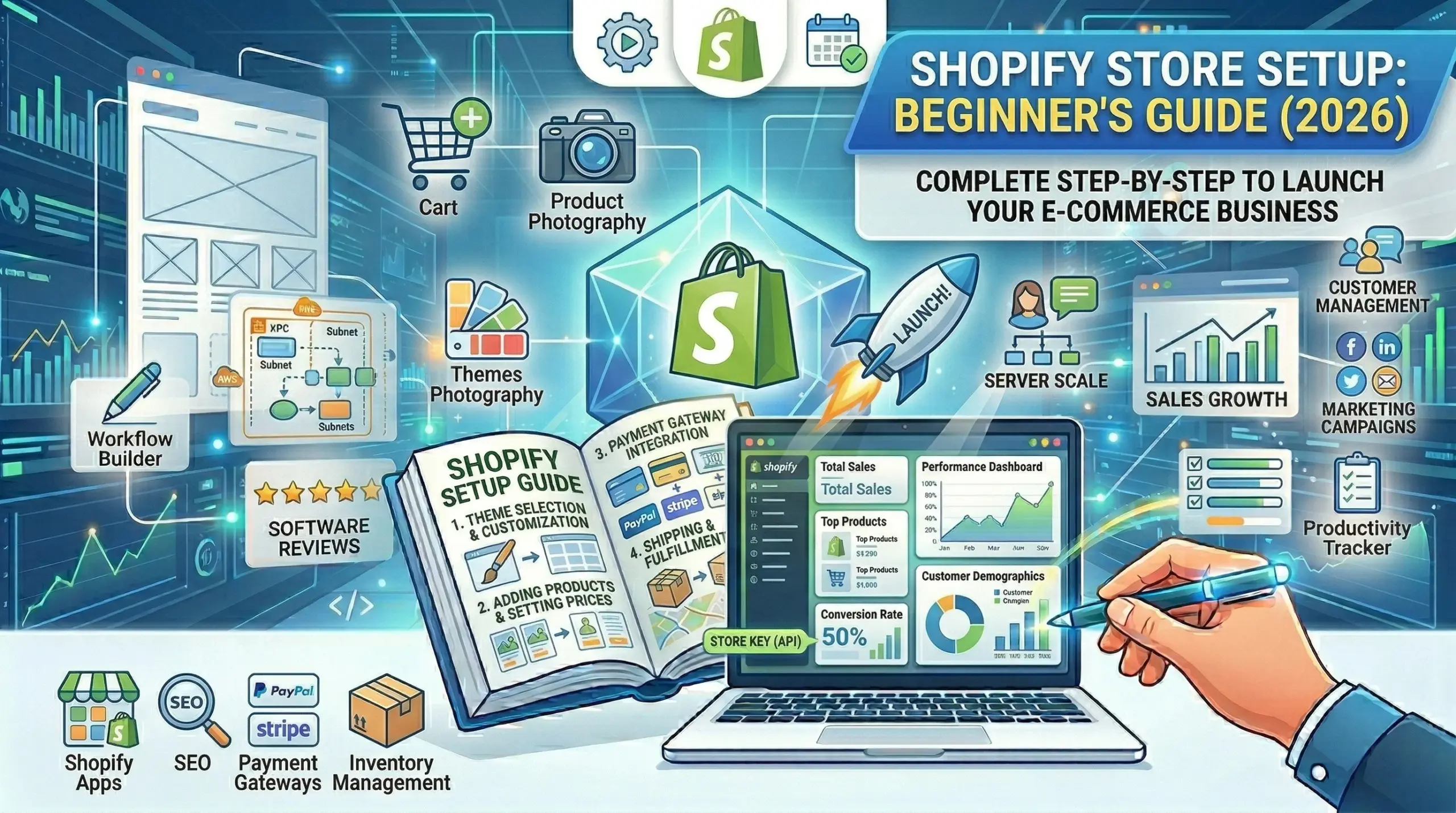

Starting an online store used to require thousands of dollars and months of development work. Today, platforms like Shopify have democratized e-commerce, allowing anyone to launch a professional online store in a matter of days.
I’ve helped dozens of clients set up their Shopify stores over the past few years, and I’ve learned what works (and what doesn’t) through trial, error, and real customer feedback. This guide compiles everything I wish someone had told me before launching my first Shopify store.
In this comprehensive guide, you’ll learn:
- How to choose the right Shopify plan for your business
- Step-by-step setup process from account creation to launch
- Essential settings you must configure before selling
- How to choose and customize your theme effectively
- Product upload best practices that increase conversions
- Payment gateway setup and fee optimization
- Shipping configuration strategies
- Must-have apps vs nice-to-have apps
- Pre-launch checklist to avoid common mistakes
- SEO fundamentals for Shopify stores
This isn’t theory—these are battle-tested strategies from real stores that have processed millions in sales.
Before You Start: Is Shopify Right for You?
Let me be honest upfront: Shopify isn’t always the best choice. Here’s when it makes sense:
Shopify is PERFECT if you:
- Sell physical products (clothing, electronics, handmade goods)
- Need to launch quickly (days, not months)
- Don’t have technical/coding skills
- Want a hosted, all-in-one solution
- Plan to scale to thousands of orders
- Need built-in mobile optimization
- Value 24/7 support
Consider alternatives if you:
- Sell only digital products (Gumroad might be better)
- Need ultimate customization (WordPress + WooCommerce)
- Have under $500/year budget (consider Etsy or Amazon first)
- Want to avoid transaction fees (self-hosted solutions)
- Sell services/consulting (book on WordPress + WooCommerce Bookings)
Real example: A client insisted on Shopify for a consulting business. After 3 months and $300+ in fees with only 12 sales, we migrated to WordPress with a booking plugin. Monthly costs dropped from $100+ to $25, and it was a better fit.
Step 1: Choose Your Shopify Plan
Shopify offers three main plans (as of 2026):
Basic Shopify – $39/month
What you get:
- Unlimited products
- 2 staff accounts
- Sales channels (online store, social media, marketplaces)
- 24/7 support
- Manual order creation
- Discount codes
- SSL certificate
- Abandoned cart recovery
Transaction fees:
- 2.9% + 30¢ per online transaction (Shopify Payments)
- Additional 2% if you use external payment gateway
Best for: Solo entrepreneurs, new stores, testing product ideas, under 50 orders/month
Shopify – $105/month
Additional features:
- 5 staff accounts
- Professional reports
- Lower transaction fees (2.7% + 30¢)
- Gift cards
Best for: Growing stores, 50-500 orders/month, need team access
Advanced Shopify – $399/month
Additional features:
- 15 staff accounts
- Advanced report builder
- Third-party calculated shipping rates
- Lowest transaction fees (2.5% + 30¢)
Best for: Established stores, 500+ orders/month, complex shipping needs
My Recommendation:
Start with Basic ($39/month) even if you can afford higher tiers. Here’s why:
- You can upgrade anytime (takes 30 seconds)
- The core features are identical for selling
- Reports on Basic are enough for most new stores
- You’ll save $792/year compared to standard plan
- Test your product-market fit first
Upgrade to Shopify ($105) when you hit 50+ orders/month consistently for 3 months. The lower transaction fees will offset the higher plan cost.
Math check:
- At 100 orders/month averaging $50 each = $5,000 sales
- Transaction fee difference: 0.2% × $5,000 = $10/month savings
- Plan difference: $66/month more expensive
- Net cost: -$56/month
You’d need $33,000/month in sales to break even on transaction fees alone. The value is in the professional reports and team accounts.
Step 2: Sign Up and Initial Configuration
Creating Your Account
- Go to Shopify.com
- Click “Start free trial” (14 days, no credit card required)
- Enter your email
- Use a business email if you have one (looks more professional)
- Not your personal Gmail if avoidable
- Answer the setup questions honestly:
- “Will you be selling products?” → Yes
- “Do you have products to sell?” → Be truthful (affects onboarding)
- “Where will you sell?” → Online store (you can add others later)
- Choose your store nameCRITICAL DECISION: Your store name becomes your URL:
yourstore.myshopify.comRules:- Can only be changed once without contacting support
- Should match your brand name
- Lowercase, no spaces (use hyphens)
- Keep it short and memorable
- Good:
northern-lights-candles - Bad:
the-best-handmade-organic-soy-candles-shop
- Complete business information:
- Full legal name
- Business address (can be home address initially)
- Phone number
Essential Initial Settings
Before adding products, configure these critical settings:
Navigate to: Settings (bottom left)
General Settings
Store details:
- Store name: Your business name (shown to customers)
- Store email: Customer service email (shown on receipts)
- Store phone: Customer support number
- Store currency: Choose carefully—hard to change later
- Timezone: Your local timezone (affects order timestamps)
- Unit system: Metric or Imperial
Store address:
- This appears on packing slips and legal pages
- Must be accurate for tax calculations
- Can be home address for home-based businesses
Standards and formats:
- Order ID format: Keep default (#1001, #1002, etc.)
- Time and date format: Choose your preference
- Email format: Keep default
Payment Providers
Shopify Payments (Recommended):
If available in your country, enable Shopify Payments:
Pros:
- No transaction fees (just credit card processing fees)
- Fastest payouts (2-3 business days)
- Integrated with Shopify dashboard
- No third-party account needed
- Lower fees than PayPal for most transactions
Cons:
- Strict policies (high-risk products banned)
- Account can be held for review
- Not available in all countries
Fees (USA):
- Basic plan: 2.9% + 30¢
- Shopify plan: 2.7% + 30¢
- Advanced plan: 2.5% + 30¢
Setup:
- Settings → Payments → Shopify Payments
- Complete payout details (bank account)
- Enter business information
- Submit for verification (instant to 1-2 days)
Alternative: PayPal
If Shopify Payments isn’t available or you prefer PayPal:
Pros:
- Accepted worldwide
- Customers trust it
- Instant recognition
Cons:
- 2.9% + 30¢ processing fees
- PLUS 2% Shopify transaction fee on Basic plan
- Total: ~5% per transaction vs 2.9% with Shopify Payments
Setup:
- Settings → Payments → PayPal
- Connect your PayPal Business account
- Test with a small transaction
Other options:
- Stripe (alternative to Shopify Payments)
- Authorize.net (enterprise)
- Square (if you have retail location)
My advice: Use Shopify Payments if available. The 2% transaction fee savings add up quickly. On $10,000/month sales, that’s $200/month saved.
Shipping and Delivery
This deserves its own section (see Step 6), but configure basics now:
- Settings → Shipping and delivery
- Add your shipping origin address
- Set up basic shipping zones (we’ll refine later)
Quick setup for USA domestic:
- Shipping zone: United States
- Flat rate: $5.99 (or whatever you’ll charge)
- Free shipping: On orders over $50
You can refine this later based on actual product weights and dimensions.
Taxes
Shopify handles most tax calculations automatically, but verify:
US-based stores:
- Settings → Taxes and duties
- Verify your business address (determines tax nexus)
- Shopify auto-calculates sales tax by customer location
- No action needed unless you have nexus in multiple states
International stores:
- Enable tax collection for your country
- VAT/GST: Enter your tax ID if registered
- Configure tax rates (Shopify has templates)
Critical: If you’re US-based and expect >$100k/year or 200+ transactions in any state, you may need to register for sales tax in that state. Consult a tax professional.
Step 3: Choose and Customize Your Theme
Your theme is your store’s design. It affects:
- Customer trust and credibility
- Conversion rates (poor theme = lost sales)
- Mobile experience
- Page load speed
- SEO performance
Free vs Paid Themes
Free Shopify Themes (10+ available):
Best free themes:
- Dawn – Modern, fast, clean (my top recommendation)
- Sense – Minimalist, great for fashion
- Craft – Good for artisan/handmade products
Pros:
- $0 cost
- Official Shopify support
- Regular updates
- Mobile-optimized
- Fast loading
Cons:
- Limited customization options
- Generic look (thousands use them)
- Fewer features than premium themes
Paid Themes ($180-350 one-time):
Top paid themes:
- Impulse ($350) – High-converting, feature-rich
- Turbo ($350) – Fastest theme available
- Empire ($340) – Great for large catalogs
- Prestige ($320) – Luxury brands
Pros:
- More customization options
- Advanced features (quick view, sticky cart, etc.)
- Professional, unique designs
- Often faster than free themes
- Premium support
Cons:
- Upfront cost
- Learning curve for features
My Theme Recommendation
For beginners or budget-conscious: Start with Dawn (free)
Why Dawn:
- Built by Shopify (guaranteed compatibility)
- Extremely fast (90+ PageSpeed score)
- Clean, modern design
- All essential features
- Great mobile experience
- Easy to customize
When to upgrade: After you’ve made 50+ sales and identified specific needs. Maybe you need:
- Mega menu for large product catalog → Empire
- Lightning-fast speed → Turbo
- Advanced filtering → Impulse
Real example: A jewelry client spent $350 on Impulse theme before launch. After 6 months, they realized Dawn would’ve worked fine. That $350 could’ve gone to ads.
Installing Your Theme
- Online Store → Themes
- Visit Theme Store
- Browse or search for theme
- Click “Try theme” (preview with your products)
- If satisfied, click “Add theme”
- Click “Publish” to make it live
Customizing Your Theme
Navigate to: Online Store → Customize
This opens the theme editor. Here’s what to configure:
Homepage Sections
Most themes let you add/remove sections. Essential sections:
- Hero/Banner Image
- Large image or video at top
- Headline: Clear value proposition
- Button: “Shop Now” or “View Collection”
- Example: “Handcrafted Leather Goods | Free Shipping Over $50”
- Featured Collection
- Show 4-8 best sellers or new arrivals
- Keep it curated (not entire catalog)
- Image with Text
- Tell your brand story
- Show production process
- Highlight unique selling points
- Testimonials/Reviews
- Social proof builds trust
- Add even before launch (from beta testers)
- Newsletter Signup
- Offer 10% off for email signup
- Essential for marketing
Homepage mistakes to avoid:
- ❌ Too many products (overwhelming)
- ❌ No clear call-to-action
- ❌ Slider with 10+ images (slow, ignored)
- ❌ Auto-playing video with sound
- ❌ Generic “Welcome to our store” text
Colors and Fonts
Colors:
- Primary: Your brand color (buttons, links)
- Secondary: Accent color
- Background: Usually white or off-white
- Text: Dark gray (not pure black—easier on eyes)
Fonts:
- Heading: Bold, readable (not decorative)
- Body: Clean, professional
- Maximum 2 font families
Professional combination:
- Heading: Montserrat (bold, modern)
- Body: Open Sans (clean, readable)
Logo Upload
Logo specifications:
- Format: PNG with transparent background
- Size: 250-300px wide for desktop header
- Color: Works on your header background
- Retina: 2x resolution (500-600px actual size)
Don’t have a logo?
- Use Canva.com to create one (free)
- Or use text-based logo (store name in nice font)
- Professional logo can wait until you validate product
Mobile Optimization
Critical: Over 70% of Shopify traffic is mobile. Preview mobile:
- Click mobile icon in theme editor (top)
- Check:
- Text is readable (not too small)
- Buttons are tappable (not too close)
- Images load quickly
- Menu is easy to navigate
Navigation Menu
Create main menu:
- Online Store → Navigation
- Main menu should have:
- Home
- Shop/Products (or specific collections)
- About Us
- Contact
- Maximum 5-7 items
Footer menu:
- Privacy Policy (required)
- Terms of Service (required)
- Refund Policy (required)
- Shipping Information
- FAQs
- Contact Us
Step 4: Create Legal Pages (Required!)
Before selling, you MUST have these pages. Shopify can generate templates:
How to Generate Legal Pages
- Settings → Policies
- Click “Create from template” for each:
- Refund policy
- Privacy policy
- Terms of service
- Shipping policy
- Review and customize each template:
- Replace [Your Company] with your business name
- Adjust return window (30 days? 60 days?)
- Specify shipping times
- Add any specific policies
- Save each policy
- Add to footer:
- Online Store → Navigation → Footer menu
- Add menu items linking to each policy page
Why this matters:
- Legal requirement in most jurisdictions
- PayPal/Shopify Payments require them
- Customers trust stores with clear policies
- Protects you in disputes
Create About Us Page
- Online Store → Pages → Add page
- Title: “About Us” or “Our Story”
- Write compelling copy:
Template:
[Who you are]
We're [Company Name], a [location]-based [product type] company founded in [year].

[Why you started]
Our journey began when [founder] noticed [problem]. Frustrated by [issue], we set out to create [solution].

[What makes you different]
Unlike mass-produced alternatives, our products are:
- [Unique selling point 1]
- [Unique selling point 2]
- [Unique selling point 3]

[Your values/mission]
We believe in [core value], which is why we [specific practice].

[Call to action]
Browse our collection and find [product type] that [benefit].
Real example structure (not copy this verbatim):
“Northern Lights Candles is a Minnesota-based candle company founded in 2023.
Our story began when founder Sarah noticed most candles contained questionable ingredients and fake fragrances. As someone with scent sensitivities, she wanted clean-burning candles that actually smelled good.
Unlike typical candles, ours are:
- 100% soy wax (no paraffin)
- Hand-poured in small batches
- Scented with essential oils only
- Made in recyclable containers
We believe in transparency, which is why we list every ingredient and source materials from US suppliers.
Explore our collection and find candles that smell amazing without the chemicals.”
Contact Page
- Online Store → Pages → Add page
- Title: “Contact Us”
- Add contact form: Most themes have built-in contact form block
- Include:
- Contact form
- Email address
- Response time expectation (“within 24 hours”)
- Optional: Phone number, business hours
Step 5: Add Your Products
This is where most beginners make costly mistakes. Here’s how to do it right:
Product Photography
The brutal truth: Bad photos kill sales. Period.
You don’t need a professional photographer (though it helps), but you need:
Minimum requirements:
- Clean, white or neutral background
- Good lighting (natural light or lightbox)
- Sharp focus (not blurry)
- Multiple angles (front, back, sides, detail shots)
- Consistent style across products
Best practices:
- 5-7 images per product minimum
- Include lifestyle shots (product in use)
- Show scale (product next to common object or on person)
- Highlight details (stitching, texture, features)
- All images same dimensions (square works best: 2048x2048px)
DIY setup (under $100):
- White poster board or backdrop ($10)
- Clip-on desk lamps × 2 ($30)
- Smartphone camera (most new phones are excellent)
- Free editing: Canva or Photoshop Express app
Lifestyle shots: Show your product being used by real people. This increases conversion rates significantly.
Product Titles
Format: [Product Name] - [Key Variant/Feature]
Examples:
- ✅ “Classic Crew Neck T-Shirt – 100% Organic Cotton”
- ✅ “Leather Laptop Bag – 15 inch – Cognac Brown”
- ❌ “T-Shirt” (too vague)
- ❌ “The Most Amazing Incredible T-Shirt You’ll Ever Own” (stuffed)
Length: 50-70 characters ideal for SEO
Product Descriptions
Structure that converts:
Above the fold (first 2-3 sentences):
- Key benefit
- Who it’s for
- Why it’s special
Features & Specs: Use bullet points:
- Material composition
- Dimensions/size
- Color options
- Special features
- Care instructions
Story/Details:
- How it’s made
- Why these materials
- Ideal use cases
Social proof:
- Customer quotes if you have them
- Awards or recognition
Call to action:
- “Add to cart now”
- Scarcity if true: “Only 12 left”
Example structure:
Stay comfortable all day in our Classic Crew Neck T-Shirt. Made from 100% certified organic cotton, it's perfect for everyday wear whether you're working from home or heading out.

FEATURES:
- 100% GOTS-certified organic cotton
- Pre-shrunk for consistent fit
- Reinforced shoulder seams
- Unisex sizing (see size chart)
- Available in 8 colors
- Machine washable

THE DETAILS:
We source our cotton from certified organic farms in California, ensuring fair wages and sustainable practices. Each shirt is cut and sewn in Los Angeles, supporting local manufacturing.

The fabric weight (180 GSM) strikes the perfect balance—substantial enough to last years, but breathable for comfort.

CARE:
Machine wash cold, tumble dry low. No bleach needed—our dyes are colorfast.

---

"Best t-shirt I've ever owned. The fabric is so soft!" - Sarah M.

[Add to Cart button]
Length: 150-300 words. Enough to inform, not so much people skip.
Pricing Strategy
Cost-Plus Method (Simple):
- Calculate total cost:
- Product cost: $10
- Shipping to you: $2
- Packaging: $1
- Shopify fees (3%): Variable
- Total: ~$13
- Multiply by 2-3× for retail:
- $13 × 2.5 = $32.50
- Round to $34.99
Competitor-Based (Market Rate):
- Search similar products on competitors
- Note price range
- Price accordingly:
- Premium positioning: Top 25%
- Value positioning: Bottom 25%
- Middle ground: Median
Psychological pricing:
- $29.99 outperforms $30.00
- $47 feels premium vs $49.99
- Round numbers ($50) suggest luxury
My recommendation for new stores: Start at middle of market range. You can always run sales, but increasing prices frustrates existing customers.
Inventory & Variants
Inventory tracking:
- Enable: “Track quantity”
- Enter available quantity
- Check: “Continue selling when out of stock” (only for pre-orders)
Variants (size, color, material):
Add variant options:
- Option name: “Size”
- Option values: “Small”, “Medium”, “Large”, “XL”
Second option:
- Option name: “Color”
- Option values: “Black”, “Navy”, “Heather Gray”
This creates combinations: Small/Black, Small/Navy, Medium/Black, etc.
For each variant:
- Set price (if different)
- Set inventory quantity
- Add specific SKU
- Upload variant-specific image
Variant images: If you sell a shirt in 3 colors, upload image of each color.
SKU System
SKU = Stock Keeping Unit (internal tracking code)
Simple system:
[Category]-[Product]-[Variant]

Example:
TS-CREW-BLK-S = T-Shirt, Crew Neck, Black, Small
TS-CREW-NVY-M = T-Shirt, Crew Neck, Navy, Medium
Consistent SKUs make inventory management easier as you grow.
SEO Settings (Bottom of product page)
Page title:
- Default is fine: “Product Name | Store Name”
- Or customize: “Organic Cotton Crew Neck T-Shirt | Sustainable Basics”
Meta description: Write custom description (155-160 characters): “Shop our organic cotton crew neck t-shirt. Pre-shrunk, ethically made in LA, and available in 8 colors. Free shipping over $50.”
URL handle: Keep it simple and keyword-rich:
- Good:
/products/organic-cotton-crew-neck-tshirt - Bad:
/products/product-name-12345
Product Organization
Collections: Group products logically
Create collections:
- Products → Collections → Create collection
- Types:
- Manual: You choose which products
- Automatic: Based on rules (tags, price, etc.)
Essential collections:
- “New Arrivals” (automatic: created in last 30 days)
- “Best Sellers” (manual: your top products)
- By category: “T-Shirts”, “Hoodies”, “Accessories”
- “Sale” (automatic: compare at price > price)
Product tags: Add relevant tags for filtering:
- Material: “cotton”, “organic”, “recycled”
- Style: “casual”, “formal”, “athletic”
- Season: “summer”, “winter”, “all-season”
Tags enable “filter by material” or “filter by price” on collection pages.
Step 6: Configure Shipping Settings
Shipping can make or break your store. Here’s how to set it up properly:
Understand Shipping Zones
Shipping zones = geographic regions with specific rates
Common setup:
- Zone 1: Domestic (your country)
- Zone 2: International (everywhere else)
Or more granular:
- USA: Domestic
- Canada: Neighbor
- Europe: Region 1
- Rest of World: International
Domestic Shipping Strategies
Option 1: Flat Rate
Same price regardless of order value:
- Pros: Simple, predictable for customer
- Cons: You lose money on heavy orders, overcharge on light orders
Setup:
- Rate name: “Standard Shipping”
- Price: $5.99 (or whatever covers your average)
Option 2: Free Shipping Threshold
Free shipping over $X:
- Pros: Increases average order value
- Cons: You absorb shipping cost
Setup:
- Rate 1: “Standard Shipping” – $5.99 (if order < $50)
- Rate 2: “Free Shipping” – $0 (if order >= $50)
Calculate your threshold:
- Average order value currently: $35
- Average shipping cost: $6
- Desired increase: 40%
- Free shipping threshold: $50 ($35 × 1.4)
Advertise: “Free shipping on orders $50+”
Option 3: Real-Time Carrier Rates
Show actual USPS/UPS/FedEx rates (requires Shopify plan or higher):
- Pros: Accurate, fair to you and customer
- Cons: Customers see varying prices
Setup:
- Connect carrier account
- Enable carrier-calculated rates
- Add handling fee if desired (+$2 per label)
My recommendation: Start with flat rate $5.99 + free shipping threshold at $50-75. Simple for customers, increases order value, and if you’ve priced products right, you’ll break even or profit on shipping.
Product Weights
For accurate shipping:
- Weigh each product + packaging
- Enter weight in product settings
- Add 2-4 oz for packaging materials
International Shipping
Decision: Will you ship internationally?
Pros:
- Expand market
- More sales opportunities
Cons:
- Customs complications
- Higher shipping costs
- Longer delivery times
- Potential return headaches
If yes, setup:
- Create “International” zone
- Flat rate: $15-25 (or disable and only show at checkout if too complex)
- Consider excluding certain countries (high fraud risk)
Duties and import taxes:
- Customer pays (mention in shipping policy)
- Or you can prepay (DDP – Delivered Duty Paid) but complex
My recommendation for beginners: Start domestic only. Add international after you’ve fulfilled 100+ domestic orders smoothly.
Shipping Protection
Consider:
- Route: Customers can add package protection (~$1-2)
- Malomo: Branded tracking pages
- AfterShip: Tracking notifications
Free alternative: Just eat the cost of 1-2% lost packages. Builds customer loyalty.
Step 7: Essential Apps (Not Nice-to-Haves)
Shopify App Store has 8,000+ apps. Here are the only essential ones for launch:
Must-Have Apps (Install These)
1. Klaviyo (Email Marketing) – FREE up to 250 contacts
Why essential:
- Abandoned cart recovery (recovers 10-15% of lost sales)
- Welcome series for new subscribers
- Post-purchase follow-up
- Way more powerful than Shopify Email
Setup:
- Install Klaviyo
- Create abandoned cart flow (use template)
- Create welcome series flow
- Add signup form to site
2. Judge.me (Product Reviews) – FREE
Why essential:
- Social proof increases conversions 20-30%
- SEO benefits (review markup)
- Builds trust
Setup:
- Install Judge.me
- Import reviews if migrating from another platform
- Enable review request emails
- Add review widgets to product pages
3. Loox (Photo Reviews) – $9.99/month
Alternative to Judge.me if you want customer photo reviews prominently:
- Customers upload photos with reviews
- Photo reviews convert 2× better than text only
- Automated review request emails
4. Stocky (Inventory Management) – FREE from Shopify
Why essential once you have >50 SKUs:
- Track stock levels
- Low stock alerts
- Purchase order management
- Demand forecasting
Optional But Useful Apps
Privy (Popups & Email) – FREE up to 100 contacts
- Email popup (10% off for email)
- Exit-intent offers
- Spin-to-win wheels
ReConvert (Post-Purchase Upsells) – $4.99/month
- Thank you page upsells
- One-click upsells
- Track additional revenue
PageFly (Landing Page Builder) – FREE plan available
- Custom landing pages
- Product page builder
- Drag-and-drop editor
Apps to AVOID Initially
Don’t install until you need them:
- Countdown timers (gimmicky for new store)
- Social proof notifications (“5 people viewing”) – fake social proof
- Multiple review apps (choose one)
- 10 different marketing apps (focus on sales first)
Why fewer apps = better:
- Each app slows your site
- Monthly costs add up fast ($10 × 10 apps = $100/month)
- More complexity to manage
Step 8: Pre-Launch Checklist
Before you launch, verify every item:
Design & Content
- Logo uploaded and displays correctly
- Favicon set (small icon in browser tab)
- Homepage has clear value proposition
- At least 10 products added with quality photos
- All product descriptions are complete
- All product prices set correctly
- Collections created and organized
- Navigation menu makes sense
- Footer menu has all legal pages
- About Us page tells your story
- Contact page works and sends emails to you
Technical Setup
- Payment provider activated and tested
- Test order completed successfully
- Shipping rates configured
- Shipping zones set up correctly
- Email notifications customized (Settings → Notifications)
- Domain connected (if you bought one)
- SSL enabled (should be automatic)
- Google Analytics connected
- Facebook Pixel installed (if using FB ads)
Legal & Policies
- Privacy Policy published and in footer
- Terms of Service published and in footer
- Refund Policy published and in footer
- Shipping Policy published and in footer
- Contact information accurate everywhere
Mobile Check
- Open site on actual phone (not just desktop preview)
- All text readable without zooming
- Images load quickly
- Checkout works smoothly
- Menu navigation works
- Forms work (contact, newsletter)
Customer Experience
- Place test order from customer perspective
- Receive order confirmation email (check spam folder)
- Review checkout process for friction points
- Test all payment methods
- Verify tax calculation (if applicable)
- Verify shipping calculation
- Fulfill test order to yourself
- Review packing slip
Step 9: Launch & First Sales
Remove Password Protection
Your store starts password-protected. To go live:
- Online Store → Preferences
- Scroll to “Password protection”
- Uncheck “Restrict access with password”
- Save
Your store is now LIVE!
Announce Your Launch
Email list: If you collected emails pre-launch:
- Send launch email with 10-15% off code
- Subject: “We’re officially open! + 10% off inside”
Social media:
- Announce on all platforms
- Show behind-the-scenes
- Explain what makes your products special
- Include direct link to store
Friends & family:
- Text/email close circle
- Ask for honest feedback
- Request they share if they like it
Getting First Sales
Free methods:
- Instagram organic:
- Post 1-2× daily
- Use relevant hashtags (research your niche)
- Engage with potential customers’ posts
- Share user-generated content
- Pinterest:
- Create product pins
- Join group boards in your niche
- Pin consistently (5-10/day)
- Facebook groups:
- Join relevant groups (read rules!)
- Provide value before promoting
- Share when allowed
- Reddit:
- Find relevant subreddits
- Most ban direct promotion
- Participate genuinely, mention product when relevant
Paid methods (if you have budget):
- Facebook/Instagram Ads ($10-20/day minimum):
- Start with awareness campaign
- Target interests related to your product
- Test different images/videos
- Retarget website visitors
- Google Ads:
- Search ads for brand name
- Shopping ads for products
- Start small ($5-10/day)
- Influencer marketing:
- Find micro-influencers (5k-50k followers)
- Offer free product for review
- Pay $50-200 for post if needed
My advice: Spend first month validating product with organic traffic and word-of-mouth before investing heavily in ads.
Common Mistakes to Avoid
1. Too many products at launch
- Launch with 10-20 products, not 100+
- Easier to manage inventory
- Faster to fulfill orders
- Better for testing what sells
2. Ignoring mobile
- 70% traffic is mobile
- Test on actual devices
- Make checkout seamless
3. Complicated shipping
- Keep it simple: flat rate or free threshold
- Don’t offer 10 shipping options
- Clear delivery expectations
4. No email capture
- Install popup day one
- Offer 10% off for email
- Build list from first visitor
5. Perfect product syndrome
- Launch with “good enough”
- Improve based on customer feedback
- Done is better than perfect
6. No clear photos
- Blurry photos = no sales
- Invest in photography if needed
- Show product from all angles
7. Vague product descriptions
- Answer all questions in description
- Include dimensions, materials, care
- Reduces customer service emails
8. Ignoring policies
- Clear return policy builds trust
- Transparent shipping times
- Honest about limitations
After Launch: First 30 Days
Week 1:
- Monitor orders daily
- Respond to customer emails within 24 hours
- Fix any technical issues immediately
- Note which products get most views/clicks
Week 2:
- Send first newsletter to email list
- Post on social media 1-2× daily
- Request reviews from first customers
- Analyze traffic sources in Analytics
Week 3:
- Review top-performing products
- Consider first sale or promotion
- Engage with customers on social media
- Update product descriptions based on questions
Week 4:
- Evaluate first month metrics
- Decide: continue, pivot, or adjust
- Plan month 2 marketing
- Consider first ads if budget allows
Key metrics to track:
- Sessions (visitors)
- Conversion rate (orders ÷ sessions)
- Average order value
- Revenue
- Top products
- Traffic sources
Realistic expectations:
- Month 1: 0-50 orders (if working hard on marketing)
- Month 3: 50-200 orders
- Month 6: 200-500 orders
- Month 12: 500-2,000 orders
These vary wildly by niche, marketing budget, and effort.
Conclusion
Setting up a Shopify store is the easy part—building a successful business takes consistent effort, customer focus, and patience.
You now have a complete blueprint to launch your store properly. The key differences between successful stores and failures:
- Quality over quantity – 10 great products beat 100 mediocre ones
- Customer obsession – Respond fast, exceed expectations
- Clear communication – Transparent policies, accurate descriptions
- Consistent marketing – Show up daily on social media
- Data-driven decisions – Track metrics, adjust based on results
Start with the basics in this guide. Launch your store. Make your first sales. Learn from real customers. Iterate and improve.
Your next steps:
- Sign up for Shopify free trial
- Follow this guide step-by-step
- Launch within 7 days
- Get your first 10 sales
- Come back and let me know how it went!
Questions? Drop a comment below and I’ll help troubleshoot your specific situation.
Related Guides
- Shopify SEO: Complete Optimization Guide (Coming soon)
- Shopify Apps: Essential vs Optional (Coming soon)
- Product Photography on a Budget (Coming soon)
- Shopify Marketing: First 1000 Customers (Coming soon)
Last updated: April 2026 Disclosure: This guide contains no affiliate links. Recommendations are based purely on experience.

Leave a Reply