

WordPress powers over 43% of all websites on the internet, making it the most popular content management system in the world. But with great power comes occasional technical hiccups. Whether you’re running a personal blog, an e-commerce store, or a business website, encountering WordPress errors can be frustrating and alarming.
The good news? Most WordPress errors are common, well-documented, and relatively easy to fix—even if you’re not a developer. In this comprehensive guide, I’ll walk you through the 10 most common WordPress errors, explain what causes them, and show you exactly how to fix them with step-by-step instructions.
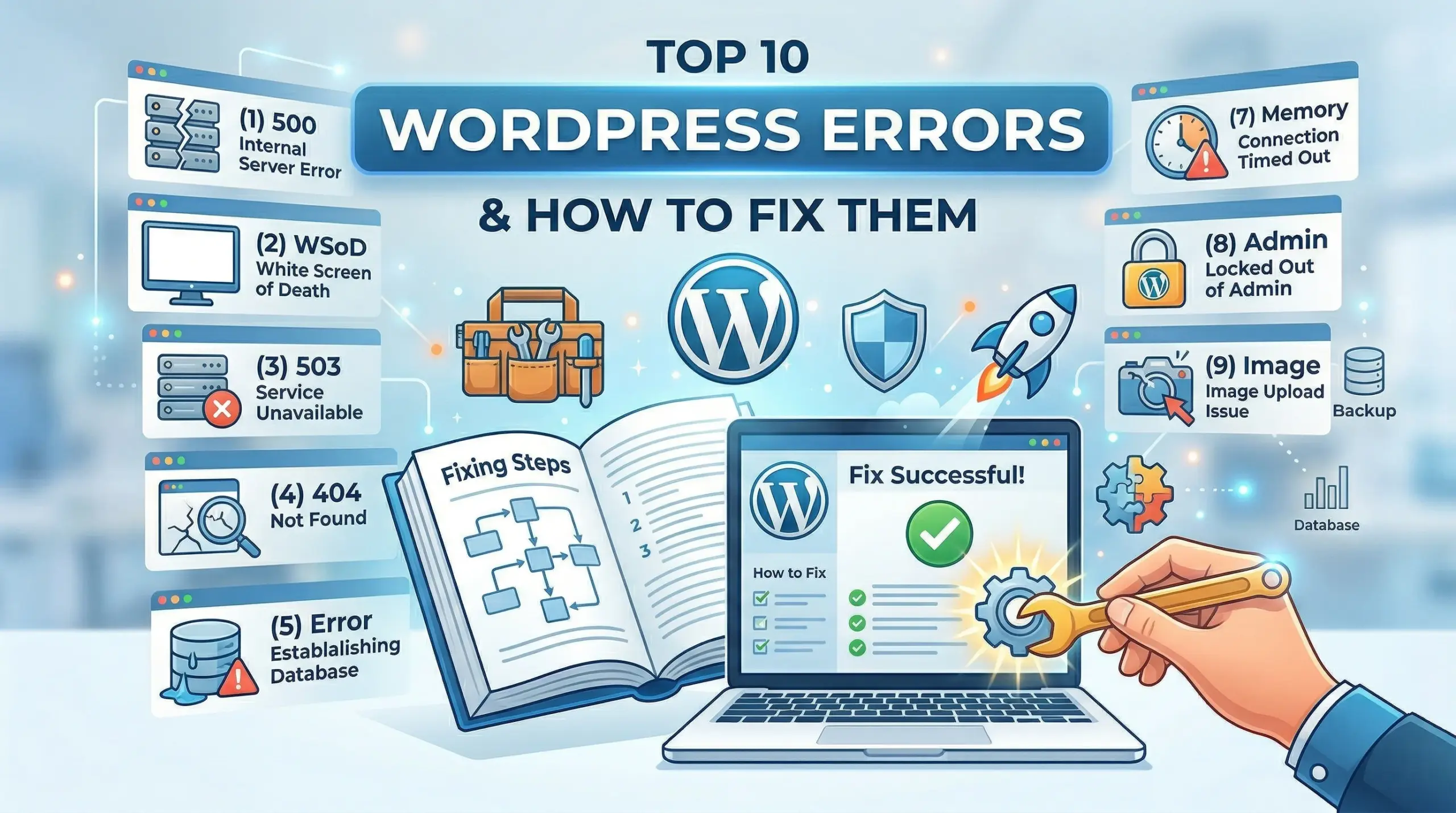
In this guide, you’ll learn how to fix:
- White Screen of Death (WSoD)
- Internal Server Error (500)
- Error Establishing Database Connection
- 404 Error – Page Not Found
- WordPress Memory Limit Exhausted
- Connection Timed Out
- Syntax Error
- Mixed Content Warnings
- Upload: Failed to Write File to Disk
- Maintenance Mode Stuck
Let’s dive in and get your WordPress site back up and running!
1. White Screen of Death (WSoD)
What Is It?
The WordPress White Screen of Death is exactly what it sounds like—your website displays nothing but a blank white screen. No error message, no content, just white emptiness. Sometimes the white screen only appears on specific pages or in the WordPress admin area.
What Causes It?
The WSoD typically occurs due to:
- PHP memory limit exhausted – Your site is trying to use more memory than allowed
- Plugin conflicts – A recently installed or updated plugin is causing issues
- Theme problems – Your theme has a coding error or is incompatible
- PHP version incompatibility – Outdated PHP version causing conflicts
How to Fix It
Step 1: Increase the PHP Memory Limit
Add this code to your wp-config.php file (located in your WordPress root directory):
php
define('WP_MEMORY_LIMIT', '256M');Place it just before the line that says /* That's all, stop editing! Happy publishing. */
Step 2: Disable All Plugins
If increasing memory doesn’t work, plugins are likely the culprit.
Via FTP/File Manager:
- Connect to your site via FTP or cPanel File Manager
- Navigate to
/wp-content/ - Rename the
pluginsfolder toplugins-disabled - Check if your site loads now
- If it works, rename back to
pluginsand disable plugins one by one through WordPress admin to find the problematic one
Step 3: Switch to a Default Theme
Via FTP/File Manager:
- Navigate to
/wp-content/themes/ - Rename your active theme folder to
theme-name-disabled - WordPress will automatically revert to a default theme
- Check if your site works now
Step 4: Enable WordPress Debugging
Add these lines to your wp-config.php file:
php
define('WP_DEBUG', true);
define('WP_DEBUG_LOG', true);
define('WP_DEBUG_DISPLAY', false);
This will create a debug.log file in /wp-content/ showing detailed error information.
Pro Tip: Always keep a backup before making changes. Use plugins like UpdraftPlus to automate backups.
2. Internal Server Error (500)
What Is It?
The 500 Internal Server Error is one of the most frustrating WordPress errors because it provides no specific information about what went wrong. You’ll see a generic message like “500 Internal Server Error” or “There has been a critical error on this website.”
What Causes It?
Common causes include:
- Corrupted .htaccess file – The most common cause
- PHP memory limit issues – Similar to WSoD
- Plugin or theme conflicts – Faulty code execution
- File permission errors – Incorrect server permissions
How to Fix It
Step 1: Fix Your .htaccess File
- Connect via FTP/File Manager
- Locate the
.htaccessfile in your WordPress root directory - Download a backup copy to your computer
- Delete the
.htaccessfile from your server - Go to WordPress Admin → Settings → Permalinks
- Click “Save Changes” without making any changes (this regenerates the .htaccess file)
Default WordPress .htaccess contents:
apache
# BEGIN WordPress
RewriteEngine On
RewriteRule .* - [E=HTTP_AUTHORIZATION:%{HTTP:Authorization}]
RewriteBase /
RewriteRule ^index\.php$ - [L]
RewriteCond %{REQUEST_FILENAME} !-f
RewriteCond %{REQUEST_FILENAME} !-d
RewriteRule . /index.php [L]
# END WordPress
Step 2: Increase PHP Memory Limit
Add to wp-config.php:
php
define('WP_MEMORY_LIMIT', '256M');Step 3: Check File Permissions
Correct permissions should be:
- Folders: 755 or 750
- Files: 644 or 640
- wp-config.php: 440 or 400 (more secure)
Fix via SSH:
bash
find /path-to-wordpress/ -type d -exec chmod 755 {} \;
find /path-to-wordpress/ -type f -exec chmod 644 {} \;
chmod 600 wp-config.php
Step 4: Disable Plugins
Follow the same plugin disabling process described in the WSoD section.
Step 5: Contact Your Host
If none of these work, contact your hosting provider. Server-side issues (like Apache/Nginx misconfigurations) require host intervention.
3. Error Establishing Database Connection
What Is It?
This error appears when WordPress can’t communicate with your MySQL database. You’ll see a message: “Error establishing a database connection.”
What Causes It?
- Incorrect database credentials – Wrong username, password, or database name in wp-config.php
- Database server down – Your MySQL server is not responding
- Corrupted database – Database tables are damaged
- Database server overloaded – Too many simultaneous connections
How to Fix It
Step 1: Check Your Database Credentials
- Open
wp-config.phpin your WordPress root directory - Verify these four lines match your actual database information:
php
define('DB_NAME', 'your_database_name');
define('DB_USER', 'your_database_username');
define('DB_PASSWORD', 'your_database_password');
define('DB_HOST', 'localhost');  // Usually localhost, but check with your host
Find your correct credentials:
- cPanel Hosting: cPanel → MySQL Databases
- Hosting Control Panel: Look for database management section
- Contact your host if you can’t find them
Step 2: Check if Database Server is Running
Create a new file called testconnection.php in your WordPress root directory:
php
<?php
$dbhost = 'localhost';  // Use your DB_HOST value
$dbuser = 'your_database_username';
$dbpass = 'your_database_password';
$dbname = 'your_database_name';

$link = mysqli_connect($dbhost, $dbuser, $dbpass, $dbname);

if (!$link) {
    die('Could not connect: ' . mysqli_error($link));
}
echo 'Connected successfully';
mysqli_close($link);
?>
Access it via: yoursite.com/testconnection.php
- Success message: Database works, issue is with WordPress
- Failure message: Database server is down or credentials are wrong
Important: Delete testconnection.php after testing for security!
Step 3: Repair Your Database
Add this line to wp-config.php:
php
define('WP_ALLOW_REPAIR', true);Visit: yoursite.com/wp-admin/maint/repair.php
Click “Repair Database” or “Repair and Optimize Database”
Remove this line from wp-config.php after repair!
Step 4: Contact Your Hosting Provider
If your database server is down or overloaded, only your host can fix it.
4. 404 Error – Page Not Found
What Is It?
A 404 error means the requested page doesn’t exist. While some 404s are normal (deleted pages, typos in URLs), widespread 404 errors indicate a problem with your WordPress setup.
What Causes It?
- Broken permalink structure – Permalink settings not properly saved
- Deleted pages – Content was removed but links still exist
- Corrupted .htaccess – Rewrite rules aren’t working
- Plugin conflicts – SEO or permalink plugins interfering
How to Fix It
Step 1: Reset Permalinks
This fixes 90% of 404 errors:
- Go to WordPress Admin → Settings → Permalinks
- Note your current permalink structure
- Click “Save Changes” without changing anything
- Test if 404 errors are fixed
Step 2: Regenerate .htaccess File
- Via FTP, rename
.htaccessto.htaccess-backup - Go to Settings → Permalinks
- Click “Save Changes”
- WordPress creates a new
.htaccessfile
Step 3: Check for Plugin Conflicts
Disable caching and SEO plugins temporarily:
- WP Rocket, W3 Total Cache
- Yoast SEO, Rank Math (unlikely but possible)
- Any custom permalink plugins
Step 4: Create Missing Pages
If specific pages show 404:
- Check if the page/post actually exists in WordPress admin
- Recreate if accidentally deleted
- Update internal links pointing to old URLs
Pro Tip: Use a broken link checker plugin like “Broken Link Checker” to find and fix all 404s on your site.
5. WordPress Memory Limit Exhausted
What Is It?
You’ll see an error message like:
- “Fatal error: Allowed memory size of X bytes exhausted”
- “Out of memory”
This happens when WordPress tries to use more PHP memory than your server allows.
What Causes It?
- Heavy plugins – Poorly coded or resource-intensive plugins
- Large media library – Thousands of images being processed
- Theme complexity – Feature-heavy themes requiring more memory
- Low hosting limits – Cheap shared hosting with tight restrictions
How to Fix It
Step 1: Increase Memory via wp-config.php
Add this to wp-config.php (before “That’s all, stop editing!”):
php
define('WP_MEMORY_LIMIT', '256M');
define('WP_MAX_MEMORY_LIMIT', '512M');
Step 2: Increase via .htaccess
Add to your .htaccess file:
apache
php_value memory_limit 256MStep 3: Increase via php.ini
If you have access to php.ini:
ini
memory_limit = 256MStep 4: Contact Your Host
Some hosts don’t allow memory limit changes. Contact them to increase your limit or upgrade your hosting plan.
Step 5: Optimize Your Site
Long-term solutions:
- Delete unused plugins
- Optimize images before uploading
- Use a lightweight theme
- Implement caching (WP Rocket, W3 Total Cache)
Recommended Memory Limits:
- Small blog: 64-128MB
- Business site: 128-256MB
- WooCommerce store: 256-512MB
- Large membership site: 512MB+
6. Connection Timed Out
What Is It?
Your site loads partially or not at all, and after 30-60 seconds, you see:
- “The site took too long to respond”
- “Connection timed out”
- “ERR_CONNECTION_TIMED_OUT”
What Causes It?
- Slow server response – Overloaded or underpowered hosting
- Resource-heavy plugins – Plugins consuming too much CPU/memory
- Large unoptimized images – Massive images taking forever to load
- External API calls – Slow third-party service responses
- Database queries – Inefficient or too many database queries
How to Fix It
Step 1: Increase PHP Time Limits
Add to wp-config.php:
php
set_time_limit(300);Add to .htaccess:
apache
php_value max_execution_time 300Step 2: Deactivate Plugins
- Deactivate all plugins
- Reactivate one by one to identify the slow plugin
- Replace or remove the problematic plugin
Step 3: Switch Themes
Temporarily switch to a default WordPress theme (Twenty Twenty-Four) to see if your theme is the issue.
Step 4: Optimize Your Database
Use plugin: WP-Optimize or Advanced Database Cleaner
- Remove post revisions
- Clean spam comments
- Optimize database tables
Step 5: Enable Caching
Install WP Rocket (premium) or W3 Total Cache (free):
- Page caching
- Browser caching
- Object caching (Redis/Memcached)
Step 6: Use a CDN
- Cloudflare (Free)
- StackPath
- KeyCDN
Step 7: Upgrade Hosting
If you’re on cheap shared hosting ($3-5/month), consider upgrading to:
- Better shared hosting ($10-20/month)
- VPS hosting ($20-50/month)
- Managed WordPress hosting ($30-100/month)
7. Syntax Error
What Is It?
A syntax error appears when there’s a mistake in PHP code. You’ll see messages like:
- “Parse error: syntax error, unexpected…”
- “Fatal error: syntax error…”
These usually show the exact file and line number where the error occurred.
What Causes It?
- Missing semicolon – Forgot
;at end of PHP statement - Missing brackets – Unclosed
{,},[,],(,) - Incorrect quotes – Mismatched
"or' - Copy-paste errors – Pasted code incorrectly
- Plugin/theme updates – New version has coding errors
How to Fix It
Step 1: Note the Error Details
The error message shows:
Parse error: syntax error in /home/user/public_html/wp-content/themes/your-theme/functions.php on line 45This tells you:
- File:
/wp-content/themes/your-theme/functions.php - Line: 45
Step 2: Access the File via FTP
- Connect via FTP/cPanel File Manager
- Navigate to the file mentioned in the error
- Open it with a text editor
Step 3: Fix the Syntax Error
Common fixes:
- Add missing semicolon
; - Close unclosed brackets
} - Match quotes properly
"text"or'text' - Remove extra characters
If you recently added code:
- Remove the last code you added
- Re-add it carefully, checking syntax
Step 4: Restore from Backup
If you can’t find the error:
- Restore the file from a backup
- Or delete the file and reinstall the plugin/theme
Pro Tip: Use a code editor with syntax highlighting (VS Code, Sublime Text, Notepad++) to catch errors before uploading.
8. Mixed Content Warnings
What Is It?
After installing an SSL certificate (HTTPS), you see:
- Broken padlock icon
- “Not Secure” warning
- Browser console errors: “Mixed Content”
This happens when your site loads HTTPS (secure) but some resources load via HTTP (insecure).
What Causes It?
- Hardcoded HTTP URLs – Images, scripts, or styles using
http://instead ofhttps:// - Old content – Posts/pages created before SSL installation
- External resources – Third-party scripts loading via HTTP
- Database URLs – Site URL stored as HTTP in database
How to Fix It
Step 1: Update WordPress and Site URLs
Go to Settings → General:
- WordPress Address (URL): https://yoursite.com
- Site Address (URL): https://yoursite.com
Click “Save Changes”
Step 2: Use Really Simple SSL Plugin
- Install “Really Simple SSL” plugin
- Activate it
- It automatically fixes most mixed content issues
Step 3: Search and Replace HTTP URLs in Database
Use plugin: Better Search Replace
- Search for:
http://yoursite.com - Replace with:
https://yoursite.com - Select all tables
- Do a dry run first!
- Then run the actual replacement
Step 4: Update .htaccess to Force HTTPS
Add to top of .htaccess:
apache
RewriteEngine On
RewriteCond %{HTTPS} off
RewriteRule ^(.*)$ https://%{HTTP_HOST}%{REQUEST_URI} [L,R=301]
Step 5: Check External Resources
- Update embed codes to HTTPS versions
- Replace HTTP external scripts
- Use protocol-relative URLs:
//example.com/script.js
Step 6: Verify in Browser
Check browser console (F12) for remaining mixed content warnings.
9. Upload: Failed to Write File to Disk
What Is It?
When trying to upload images or files, you see:
- “Failed to write file to disk”
- Upload progress bar stops at 100% but file doesn’t appear
What Causes It?
- Incorrect folder permissions – WordPress can’t write to upload directory
- Disk space full – Server has no remaining storage
- PHP settings – Upload limits too low
- Temporary folder issues – PHP can’t access temp directory
How to Fix It
Step 1: Check Folder Permissions
The /wp-content/uploads/ folder needs write permissions.
Via FTP:
- Navigate to
/wp-content/ - Right-click
uploadsfolder → File Permissions - Set to 755 or 750
Via SSH:
bash
chmod 755 /path/to/wordpress/wp-content/uploads
chown -R www-data:www-data /path/to/wordpress/wp-content/uploads
Step 2: Check Disk Space
Via cPanel:
- Check disk space usage on left sidebar
- Delete old backups or unused files
Via SSH:
bash
df -hIf disk is full (100%), delete unnecessary files or upgrade hosting.
Step 3: Increase PHP Upload Limits
Add to php.ini:
ini
upload_max_filesize = 64M
post_max_size = 64M
max_execution_time = 300
Or add to .htaccess:
apache
php_value upload_max_filesize 64M
php_value post_max_size 64M
Step 4: Fix Temporary Folder
Add to wp-config.php:
php
define('WP_TEMP_DIR', dirname(__FILE__) . '/wp-content/temp/');Create the temp folder in /wp-content/ with 755 permissions.
Step 5: Contact Your Host
If you can’t change permissions or PHP settings, contact your hosting provider.
10. Maintenance Mode Stuck
What Is It?
After updating WordPress, a plugin, or theme, your site shows:
- “Briefly unavailable for scheduled maintenance. Check back in a minute.”
But it stays stuck on this message indefinitely.
What Causes It?
When WordPress updates:
- It creates a
.maintenancefile - Shows the maintenance message
- Should delete the file after update completes
- If update fails/times out, the file remains
How to Fix It
Solution: Delete the .maintenance File
Via FTP/File Manager:
- Connect to your site
- Go to WordPress root directory (where
wp-config.phpis) - Look for
.maintenancefile - Delete it
- Refresh your site
Note: The file might be hidden. Enable “Show hidden files” in your FTP client or File Manager.
Prevention:
- Don’t close your browser during updates
- Ensure stable internet connection during updates
- Update one plugin/theme at a time
- Always backup before major updates
Pro Tip: If updates consistently fail, you may need to:
- Increase PHP memory limit
- Increase PHP max execution time
- Update via WP-CLI instead of dashboard
Bonus: How to Prevent WordPress Errors
Prevention is better than cure. Here are essential practices to minimize WordPress errors:
1. Regular Backups
Recommended plugins:
- UpdraftPlus (Free/Premium)
- BackupBuddy (Premium)
- Duplicator (Free)
Backup schedule:
- Database: Daily
- Files: Weekly
- Full site: Before major updates
2. Keep Everything Updated
- WordPress core
- Plugins
- Themes
- PHP version
Update safely:
- Backup first
- Update on staging site (if available)
- Test after updates
3. Use Quality Plugins & Themes
- Check ratings and reviews
- Verify recent updates
- Read support forum
- Avoid nulled/pirated themes/plugins
4. Monitor Your Site
Tools:
- UptimeRobot (Free uptime monitoring)
- Google Search Console (Crawl errors)
- Wordfence (Security monitoring)
5. Optimize Performance
- Enable caching
- Optimize images
- Use CDN
- Minify CSS/JS
- Choose quality hosting
6. Security Hardening
- Strong passwords
- Two-factor authentication
- Security plugins (Wordfence, Solid Security)
- Hide login page (WPS Hide Login)
- Limit login attempts
When to Contact a Professional
Sometimes errors are beyond DIY fixes. Contact a WordPress developer if:
- You’ve tried all solutions and the error persists
- You’re not comfortable editing files
- The error is complex or involves custom code
- Your site is critical and you can’t risk downtime
- You suspect a security breach
Where to find help:
- Codeable.io (Vetted WordPress developers)
- Upwork/Fiverr (Various skill levels)
- WordPress.org support forums (Free community help)
- Your hosting provider’s support team
Conclusion
WordPress errors can be intimidating, but most are straightforward to fix once you understand what causes them. The 10 errors we covered—from the White Screen of Death to stuck maintenance mode—represent the vast majority of issues you’ll encounter.
Key Takeaways:
✓ Always backup before making changes ✓ Enable debugging to identify issues ✓ Most errors are plugin or theme conflicts ✓ File permissions and memory limits cause many problems ✓ Prevention through updates and backups saves headaches
Keep this guide bookmarked for future reference, and remember: every WordPress user encounters these errors. With the right knowledge and approach, you can troubleshoot and fix them confidently.
Have you encountered a WordPress error not listed here? Drop a comment below and I’ll help you solve it!
Related Resources
- AWS WordPress Hosting Setup Guide (Coming soon)
- WordPress Security Checklist (Coming soon)
- Speed Optimization for WordPress (Coming soon)
- Best WordPress Plugins for 2026 (Coming soon)
Found this helpful? Subscribe to get weekly WordPress tutorials and tips delivered to your inbox!
Join 900+ subscribers
Stay in the loop with everything you need to know.
Last updated: April 2026



Leave a Reply